The short version
You get the YouTube channel ready once. After that, each phone or tablet films one court, and VBallScore makes that court's YouTube video for you, with the score on the picture. Up to ten courts can be live at the same time on one channel.
1Pick the channel
Every court's video goes to one YouTube channel. It can be the school's or club's channel, or a personal one. Two things matter:
- The person who does steps 2 and 3 must be the channel's primary owner. YouTube lets only the primary owner verify a channel.
- The same person signs in to Google in step 4, so pick a channel whose owner can be there for five minutes.
YouTube asks that the person streaming is at least 16 years old.
2Turn on live streaming in YouTube
Do this on a computer, signed in to YouTube as the channel's owner.
- Open studio.youtube.com.
- Click Settings, then Channel, then Feature eligibility.
- Open Intermediate features and click Verify phone number. YouTube sends a code to your phone. Enter it.
- At the top right of YouTube Studio, click Create, then Go live. If YouTube asks you to request access to live streaming, request it.
3Turn on Advanced features in YouTube
YouTube limits how many live videos a channel may start in 24 hours. VBallScore starts one video for each match, so a day with several courts uses that limit quickly. A channel with Advanced features has a higher limit. YouTube does not publish either number.
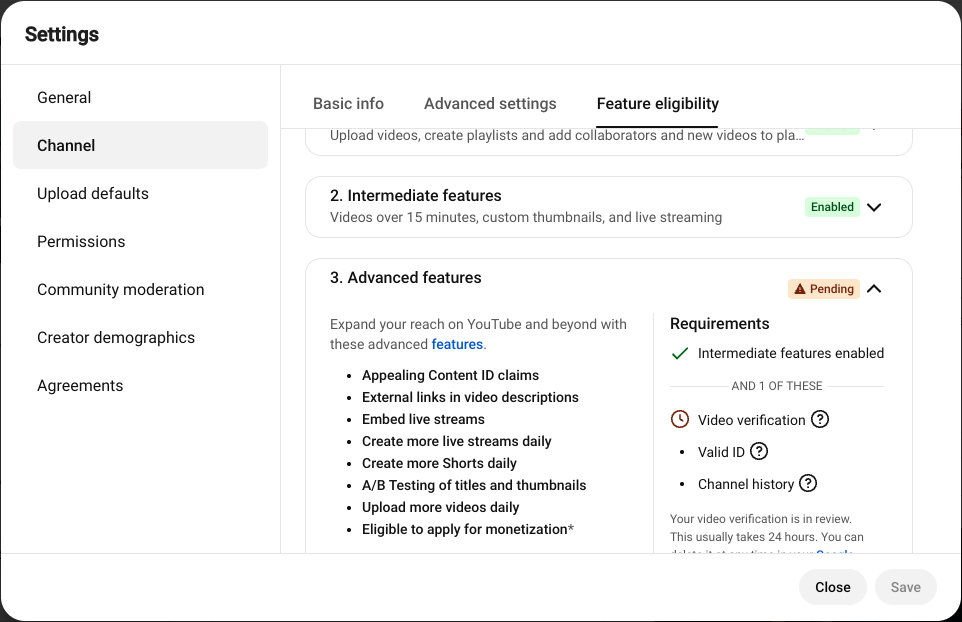
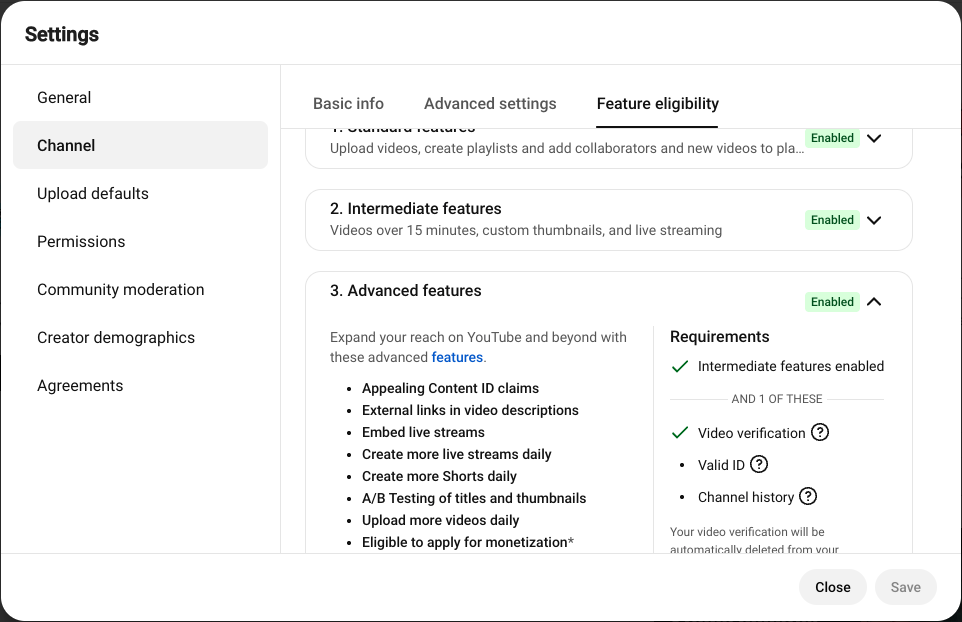
- In YouTube Studio, click Settings, then Channel, then Feature eligibility.
- Open Advanced features and click Access features.
- Choose Use your ID or Use video verification and follow YouTube's steps. YouTube says its review usually takes 24 hours.
- Come back to the same screen later. You are done when Advanced features says Enabled.
4Connect the channel to VBallScore, once
- Choose one VBallScore account for the team. Every phone that films a court signs in to this same account.
- On any one device, open Account, find YouTube connection and tap Connect.
- Google asks which account to use. Choose the account that owns the channel from step 1, then allow access.
That is all. The connection belongs to the account, so every phone signed in to it can stream. You do not connect on each phone.
5Match day: one phone per court
YouTube streaming works from the VBallScore app on a phone or tablet (get the app), on an account with streaming hours.
- On each phone, sign in to the team's account and start the match for that court.
- Turn the camera on, then tap YouTube.
- A Stream to step asks which court this phone is on, Court 1 to Court 10. A court that is live on another phone cannot be picked. With a single phone you can pick No court number.
- Choose who can watch: Public (anyone can find it on the channel) or Unlisted (only people with the link).
- Tap Start YouTube, then Go Live.
When several phones start at the same moment, the videos are made one after another. A phone that is waiting shows a short countdown and carries on by itself. If YouTube refuses for a moment, the phone waits and tries again by itself.
All courts use the same streaming hours, so four courts use hours four times as fast. Each scorekeeper is warned when about 30 minutes remain.
When the hours run out, VBallScore stops sending to YouTube and stops the paid in-app video on every court, then ends each YouTube video. A video that YouTube received stays on your channel as a replay. Scoring carries on. After you add hours, tap YouTube on a court to start a new video; it gets a new link.
YouTube only: send a court to YouTube without the in-app video
A court sends its picture twice: once to people watching in the VBallScore app, and once to YouTube. On a weak connection you can keep only the YouTube half.
- With the court live in the app and the YouTube pill showing LIVE, tap the red LIVE pill at the top.
- Answer Yes to Send to YouTube only? The top pill changes to YT only.
- To bring the in-app video back, tap YT only and choose Turn on. YouTube keeps going.
While a court is in YouTube only, people who open the match in the app see the score and a line that says In-app video is off for this court. Watch on YouTube, which opens that court's video. Streaming hours are used the same as before.
6What VBallScore does with each video
| When | What happens on YouTube |
|---|---|
| You tap Start YouTube | VBallScore makes a new live video on your channel, titled like Court 2: Home vs Away, with the venue in the description. With No court number the title has no court. |
| During the match | The score, set and team names are drawn on the picture. The link to the video shows on the scoring page, ready to share. |
| You tap End match | The live video ends. It stays on your channel as a normal video that people can replay, Public or Unlisted as you chose. |
| The next match on that court | A new video is made. Each match is its own video. |
Your team's page, vballscore.com/your-handle, lists the courts that are live with a link to each Public video. You can rename, hide or delete any video later in YouTube Studio; VBallScore does not delete videos from YouTube.
If something goes wrong
| What you see | What to do |
|---|---|
| A phone keeps saying it is waiting for YouTube | YouTube is refusing new live videos on the channel for now. Check that Advanced features says Enabled (step 3). The daily limit clears within 24 hours. Scoring and in-app video keep working. |
| The court you want is greyed out | Another phone on the account is live on that court. Pick the next court, or end that match first. |
| YouTube says the channel cannot go live | Live streaming is not on yet for the channel, or YouTube is still reviewing it (step 2). |
| A video still says Live after its match ended | In YouTube Studio open Content, then Live, and end it there. |
| The wrong channel is connected | End the live matches first. Then Account, YouTube connection, Disconnect YouTube, and connect again choosing the right Google account. |
| The YouTube picture is blocky or stops | The venue's upload speed is too low for the number of courts. Switch courts to YouTube only, use fewer courts on YouTube, or move a phone to a different network. |
| The YouTube pill says Checking after the Wi-Fi dropped | The phone is reconnecting. It returns to LIVE by itself; in our tests that took between 20 and 40 seconds. The video on YouTube keeps its link. |
| "Streaming hours ran out" appears | VBallScore has stopped sending and is ending the YouTube video on that court. Scoring continues. Add hours in the app, then tap YouTube to start a new video. |