- Create your account and open the Director Dashboard
- Info — name the event, set the rules, add divisions
- Teams — add indoor teams or beach pairs, with optional rosters
- Pools — split teams into pools
- Courts — name your courts
- Layout — show players where the courts are (optional)
- Schedule — generate the playing schedule
- Publish — go live, share the QR code, open check-in
- Game day — check-in, messaging, scoring
- Closing the event down
Before you begin
- Go to
vballscore.comon a phone, tablet, or computer. A tablet or laptop is easiest for setup; your phone is fine on game day. - Sign in. Tap the circle in the top-right corner and choose Sign in. The simplest method is email — you'll get a link in your inbox; tapping it signs you in. No password to remember.
- You need director permission to create a tournament. If you don't have it yet, the app will show you a short request form — someone at VBallScore approves it, usually the same day.
1 Open the Director Dashboard
- From the home screen, tap the Find or Run a Tournament tile.
- Tap + Start a new tournament at the top-left.
- You land on your new tournament's Manage tab, on step Info. This is the Director Dashboard.
Two rows of navigation sit at the top, and it's worth understanding them before you go further:
- The tab row (Manage · Map · Standings · Games · Teams · Active Match · Playoff Bracket · People) — Manage is yours; the rest are what players and spectators see. They stay greyed out and say "Unlocks after you publish" until you publish. That's normal.
- The step row (Info → Teams → Pools → Courts → Layout → Schedule → Publish) — six build steps followed by the Publish/Hub step. A build step turns green with a ✓ only when its current data passes that step's checks. You can jump between steps freely, though the order below is the path of least resistance.
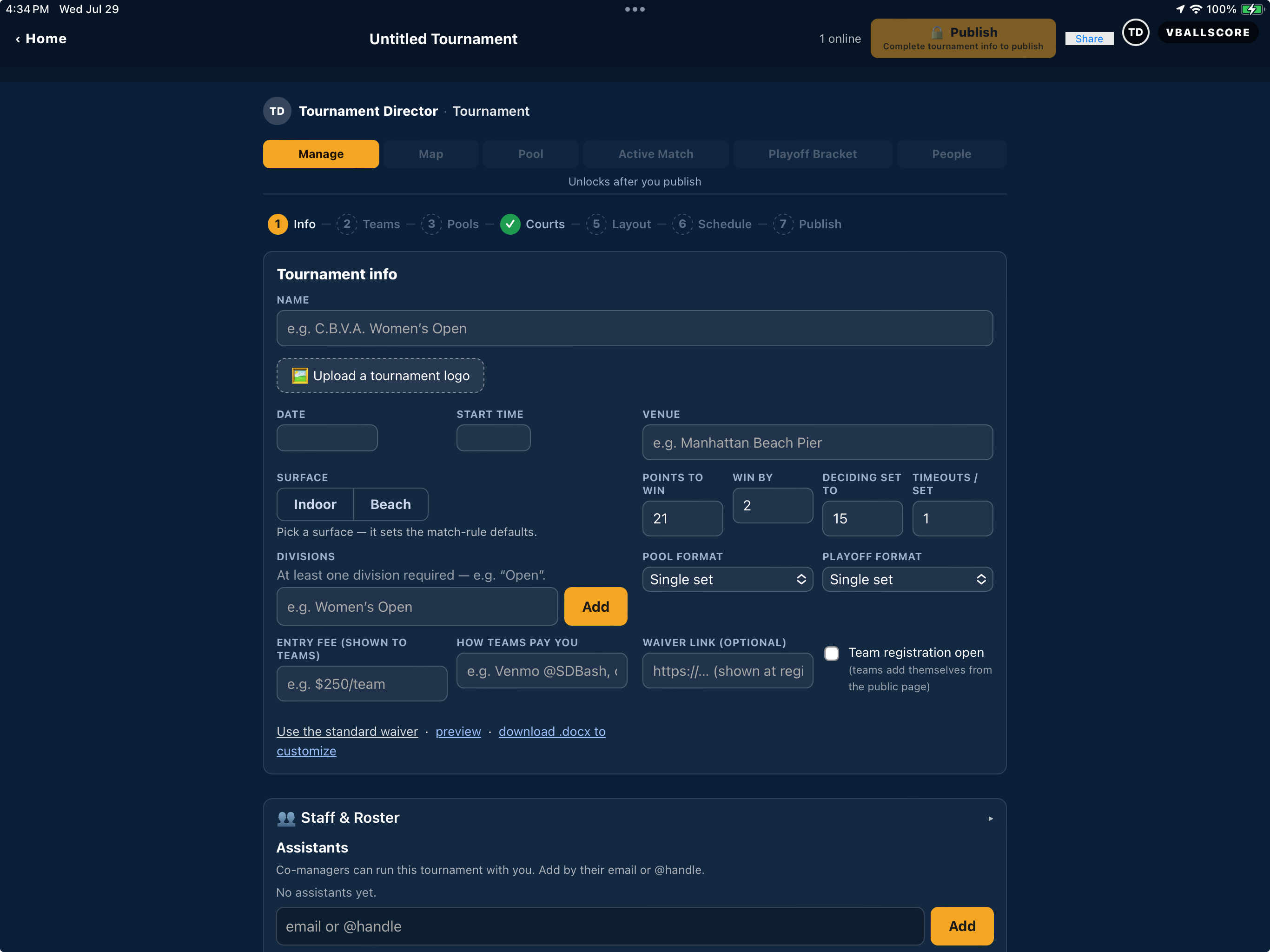
Courts shows a ✓ once you've set your real courts — the two placeholders ("1" and "2") don't count.
2 Info — name it and set the rules
Fill this in top to bottom. Nothing saves to a separate button — each field saves as you leave it.
A red error means the change was not saved. Rejected division rules return to their last saved values. If the connection drops, reconnect before trying the change again.
| Field | What to put |
|---|---|
| Name | What players call it — "Sunset Classic," "CBVA Del Mar Open." This shows on every screen and in every link you share. |
| Upload a tournament logo | Optional. Your club or event logo. It appears on the public page and on the preview card when someone texts your tournament link. |
| Date and Start time | The playing date and when the first match starts. The Schedule step’s First match time starts from this; change it there if pool play begins at a different time. The page header keeps showing this Start time, so keep the two the same unless they really differ. |
| Venue | Start typing the beach or facility name and pick from the list. This matters — it places your pin on the public map so players can find you, and it carries into every match. |
| Surface | Beach or Indoor. This one tap sets your scoring defaults, so do it before touching the numbers. |
| Points to win / Win by / Deciding set to / Timeouts per set | Pre-filled from the surface you picked (beach: 21, win by 2, deciding set to 15, 1 timeout). Change them only if your event runs differently. |
| Divisions | Required — at least one. Type a division name and tap Add. Repeat for each. Examples: Boy's 16U, Boy's 18U, Women's Open. One-division events are fine: add Open. |
| Pool format / Playoff format | One set, or sets — the scorekeeper decides how many a match goes, never more than five. The app never ends a match on a set count. |
| Division rules (new matches) | Override the points, format or side-switch interval for a division. Set points by pool size, such as four teams playing to 28 and five teams playing to 21. Blank overrides inherit the tournament default. New beach events default to a reminder every 7 combined points, or 5 in a set to 15; indoor defaults to off. An interval you enter, including 0 for off, replaces that automatic rule. Existing events keep their settings. Changes affect newly created scoreboards, not matches already created. |
| Switch sides every | 0 disables the reminder. A value of 7 prompts the scorer at 7, 14, 21 combined points. Dismiss the reminder after changing sides; it never swaps the scoreboard or changes the video. Game cards show the format, and the match avatar menu shows Tournament rules. |
| Entry fee (shown to teams) and How teams pay you | Free text, e.g. "$250/team" and "Venmo @SDBash." VBallScore never handles team money — teams pay you directly; the app just displays this and tracks who's paid. |
| Waiver link | Optional. Have your own waiver? Paste the link. Don't have one? Tap Use the standard waiver and the app supplies one; preview shows it, and download .docx to customize lets you edit your own version. |
| Team registration open | Leave unchecked if you're entering the teams yourself. Check it to let teams add themselves from your public page. |
Staff & Roster (same screen, below the form)
Assistants are co-directors. Add them by email or @handle and they get the same Manage powers you have — use this for your desk staff. Add them now if you have them.
3 Teams — add teams and rosters
Use this step for indoor teams or beach pairs. First check that Surface in Info matches your event. You can add teams by name without uploading individual players, or import player rosters and then organize them into teams.
Indoor teams
- Enter an existing team name, such as Sunset 16 Red, in Add a team... and tap Add. Repeat for each club or school team. Choose a directory suggestion when it matches, or type a new name.
- Team names are enough for pools, scheduling, and playoffs. You do not need to pair up players or enter the entire roster to set up the competition.
- To add individual player records for check-in and messaging, use Import rosters below. Put one player on each CSV row, with the same Team label and Division for everyone on that team. Leave Partner Email blank or omit that column.
Beach pairs
You can enter a pair's name in Add a team... and tap Add, just as for an indoor team. To include individual players, import one row per player with the same Team label for both partners.
Partner Email is optional. If two players name each other, the app proposes their team for you to approve. One-sided or conflicting requests are flagged, never guessed. You can also select unpaired players and use Create team from N (the button shows the selected count).
Import rosters — either format
- Tap Import rosters (the gold button at the top of the Teams step) and choose your registration spreadsheet, saved as CSV. There's a template to download right on the sheet.
- The review table identifies new and updated players, plus invalid, ambiguous, duplicate, or over-capacity rows and their reasons. Nothing is saved until you apply.
- New, unassigned players appear under Unpaired players, grouped by their Team label. This label means they are not yet attached to a team; indoor players do not need a partner.
- If you already added the teams by name: select that team's imported players, then choose the existing team in the add to team dropdown. Repeat for each team. Importing alone does not attach players to a team.
- To process multiple groups at once: tap Create all N teams (the button shows the count). When the Team label matches an existing team name and the division is the same, it adds those players to that team; case and surrounding spaces in the name do not matter. A different spelling or division creates a separate team, so check the names first. A group qualifies when its players share a Team label and division, none of them is a duplicate row in the file, and its size fits your surface: 2 to 6 players on the beach, 2 to 50 indoors. The button appears once at least two groups qualify. Groups with too many or too few players are skipped and listed. For a single new group, select its players and use Create team from N.
Your CSV needs a header row and one row per player, not one row per team. These examples use the accepted Name column; separate First Name and Last Name columns also work. The sample email addresses below are placeholders.
Indoor roster example: repeat the team label for every player on the roster, then repeat for the next team.
| Name | Division | Team | |
|---|---|---|---|
| Maya Chen | maya@example.invalid | Girls 16U | Sunset 16 Red |
| Zoe Rivera | zoe@example.invalid | Girls 16U | Sunset 16 Red |
Beach roster example: the two players share one pair name.
| Name | Division | Team | |
|---|---|---|---|
| Liam Alvarez | liam@example.invalid | Boys 16U | Alvarez / Nakamura |
| Gabriel Nakamura | gabriel@example.invalid | Boys 16U | Alvarez / Nakamura |
- Email is who the player is — it links their account so they can check themselves in and get your messages. A junior with no email uses their Parent Email instead.
- Partner Email can be added for beach partner requests. Approve each proposed pair, or use Approve all when multiple pairs are ready.
- Team groups people in the pool. Importing that label never creates a team by itself.
- Division is optional — unmatched names get a mapping dropdown at review, never silently dropped.
- Extra columns (phone, birth year, CBVA #) are ignored, not an error.
- Re-uploading the same file is safe — it updates people in place and never breaks up a team you've made.
Fixing things afterwards
Seed is the small number box at the start of each team row — 1 is your strongest team. The Pools step deals seeds into pools serpentine (1 → A, 2 → B, 3 → C, 4 → C, 5 → B, 6 → A …), the schedule follows that order, and each Games card shows a team's seed inside its pool. The public Teams tab uses seed order until the bracket is decided, then sorts by Finish. Leave seeds blank and teams keep the order you entered them, without a seed number.
Every player has a ✎ edit — name, email, parent emails, division, label, partner request — whether they're in the pool or on a team. Check-in and waiver records follow the player through any edit. Removing a team returns its players to the pool; nothing is lost.
4 Pools — split the teams up
- Tap the Pools step. If you have multiple divisions, pick the division you're working on first.
- Either drag teams into pools by hand, or tap Auto-assign to spread them evenly.
- Every team must land in a pool, and each pool needs at least 2 teams, or the step won't go green.
5 Courts — name what you actually have
- Tap the Courts step. You'll find two placeholder courts named 1 and 2.
- Rename them to match your venue signage —
Court 1…Court 20, or names players will hear over the PA, likeNorth 3. If your real courts truly are just1and2, tap Use these courts to confirm them. - Add or remove courts until the list matches reality. The schedule generator uses this list, so getting it right here saves you a reprint.
- Optionally mark a championship court with the star — it is marked with a ★ on the schedule and the printed sheet. The app does not place the final there by itself; choose the court on the final's card in Playoff Bracket.
6 Layout — show players where to go (optional)
This step is a convenience, not a requirement. It never blocks publishing, and there's a Skip if you don't want it.
Two ways to do it:
- Upload venue photo — if your venue already has a site map or you can photograph the sign, upload the image and it becomes the layout players see. Easiest option, and it carries anything already drawn on it (restrooms, the tournament desk, parking). Courts you drag onto the photo are saved against the photo itself, so they sit on the same spot in the editor, the Layout preview and the players' Map tab, on a phone or a laptop.
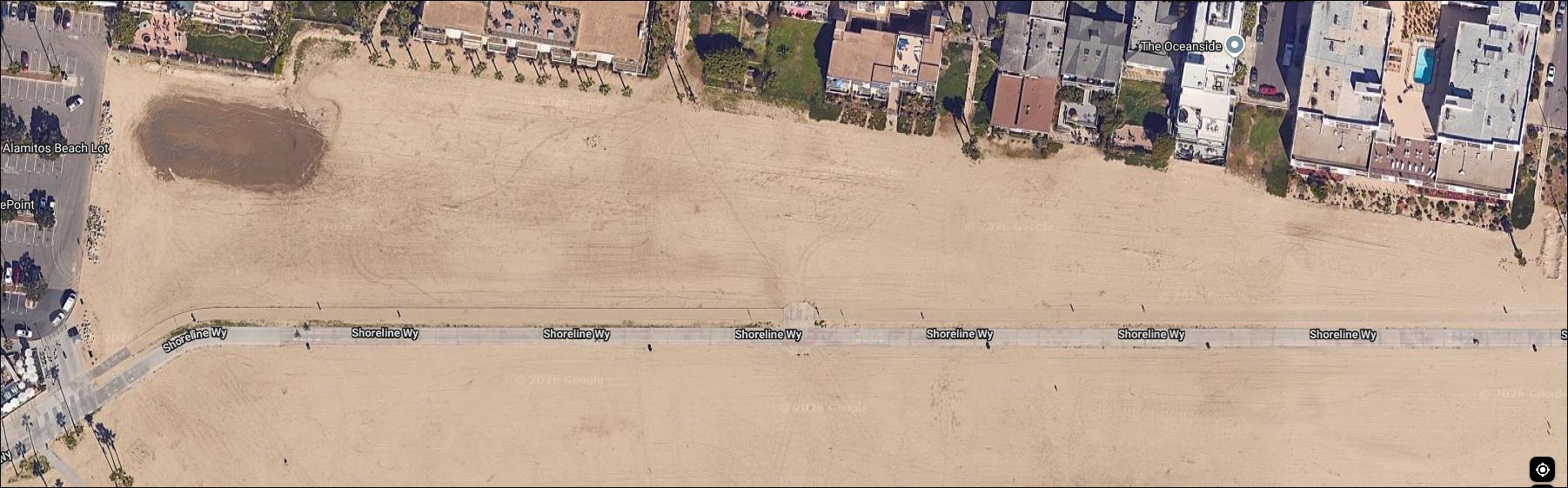
- Place courts on the satellite map — position each court on the aerial view of your venue so players can see which patch of sand is Court 7.
7 Schedule — let the app build it
- Tap the Schedule step.
- First match — starts with the time entered in Info. Check it before generating the schedule.
- Minutes / match — how long you're allotting each match, including changeover. 30 is a typical beach slot.
- Rotate courts between rounds — see below.
- Tap Generate schedule (the button reads Regenerate schedule once a schedule exists). The app builds every pool match across your courts and time slots, and shows you the grid.
- Tap Print schedule for a clean printable page to post at the desk. Wide schedules split into groups of up to 7 courts, with time and court headings repeated on continuing pages. It contains no private links — safe to hand out or pin to a board.
What "Rotate courts between rounds" does
| Setting | Behavior | Use it when |
|---|---|---|
| Checked | Pools move around — each match goes to whichever free court that pool has used least, so everyone gets a turn on every court. | Your courts differ: sun, wind, distance from the tent, one nice center court. |
| Unchecked | Each pool stays on one court all day (Pool A → Court 1, Pool B → Court 2…). | You want simple. Players learn "we're on Court 3," and your desk always knows where a pool is. |
Either way the matchups and the times are identical — this only decides which court each match lands on. The generator also tries to avoid making a team play two slots back to back. When you have at least as many courts as pools, each pool plays only as many games at once as still leave it a resting team to referee each one — one game at a time for pools of four or five — so every game has a referee; the Games tab and the printed grid name them.
8 Publish — go live
- Tap the Publish step (or the Publish button in the top bar).
- If anything's incomplete, the app tells you which step and takes you there. Fix it and come back.
- The $49 setup fee is collected here — the same tap takes you to checkout. After you pay, checkout returns you to your tournament’s public page with the note Setup fee paid — you can publish your tournament. Paying does not publish it. Go back to Manage (home screen → Find or Run a Tournament → your tournament), open the Publish step and tap Publish once more to go live. (If the fee was already paid or waived, the first tap publishes.)
You're now on the Hub (the Publish step is renamed once you're live). This is your game-day home screen:
- QR code and link — the two things players need. Print the QR for the desk and your tent; text or email the link. Scanning it opens your tournament: schedule, live scores, check-in.
- Check-in open — the toggle that lets players check in. Turn it on when you open the desk.
- Email the field — builds a complete email to every player and parent on your rosters and opens it in your own mail app, so it comes from you. Nothing is sent behind your back.
- Announce to everyone — a short message that appears as a banner on the tournament page and pushes to followers. "Wind delay, 20 minutes." Tick also email it for anything important.
- Unpublish — hides the event from players again. Rarely needed.
Playoff games also appear in Games, grouped by division, with round names, live scores and saved results. Byes are not counted as played games; a second final appears only when needed. The Playoff Bracket tab retains the tree and lets the director assign a court and referee team to each undecided game.
Use the pool filters to narrow the Games list. When there are more than eight pool or playoff groups, choose one from the Pool or playoff group dropdown; All games restores the full list.
9 Game day
Check-in
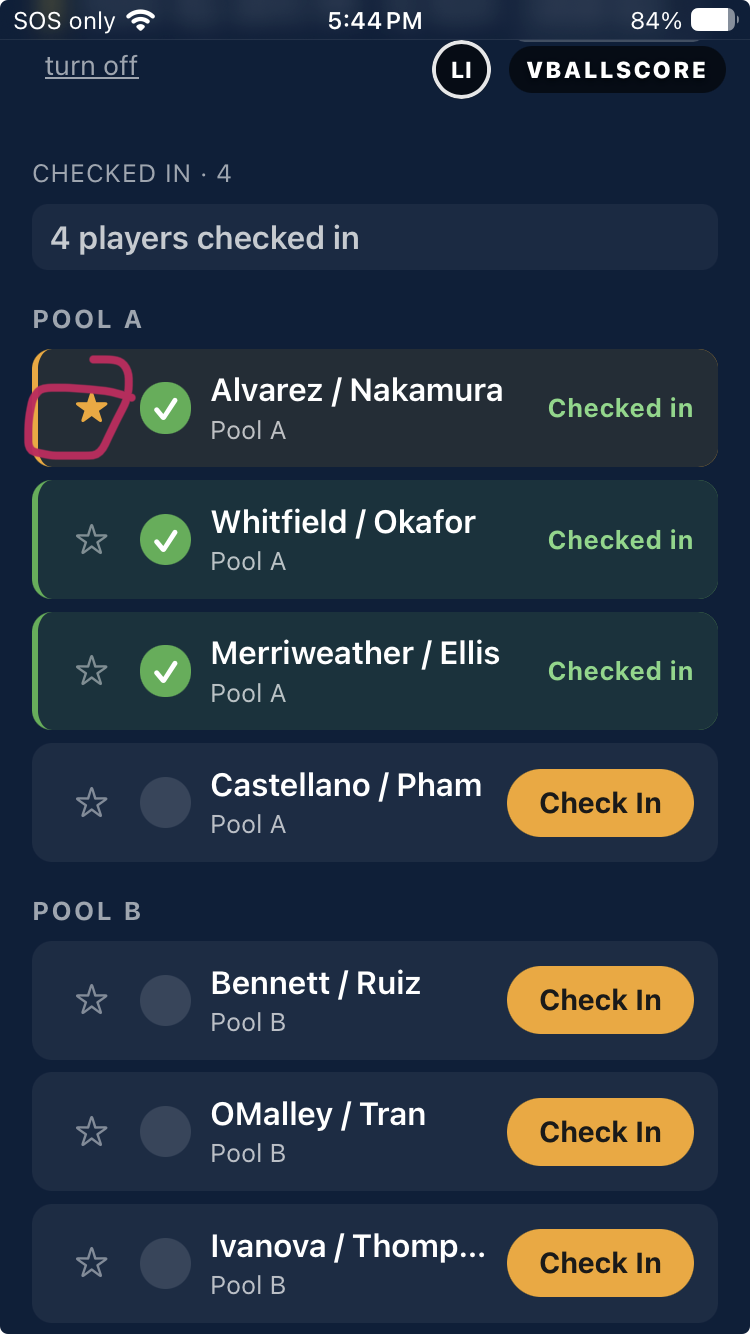
Players scan your QR, open the tournament, and tap Check In next to their team. Rules the app enforces:
- A player can check in their own team only, and a parent can check in their child's team — that's what the email columns in your roster file were for.
- You and your assistants can check anyone in — tap the mark next to a player in a team's roster, or type a name at the desk: the box matches players and teams on your rosters as you type. A name that is on no roster can be checked in as a walk-up, which puts them on the Unpaired list so you can pair them into a team. Beach: the team circle marks its roster present; a team with a roster counts as checked in once every player is present, and comes back out when one is unmarked. Indoor: the circle on a team row marks only the team as arrived and stays on; its players are marked one by one (at the desk or from their own phones) and the row reads 9 of 16 here. Team arrival does not mark players present or accept their waivers. The ✕ on the checked-in list undoes that player's mark the same way the roster's mark does.
- A player can undo their own check-in while check-in is open. Only you can undo someone else's.
The People tab
Everyone involved — you, your assistants, and the players. Search by name, and message anyone individually. Use it to reach one team without emailing the whole field.
Scoring matches
- Open the Active Match tab and tap Create pool matches — every game on the schedule gets its own scoreboard with teams, division, court and rules pre-filled.
- The assigned referee/work-team scorer signs in, opens the tournament's Games tab and selects Score this game. Their verified sign-in email must match their own roster email. A parent check-in or selecting a team does not grant scoring access.
- For indoor teams without individual accounts, or when a scorer cannot continue, use Assign scorer beside the game in Games or Active Match and enter the replacement's sign-in email. Manually created matches are under Active Match. This replaces the referee team's scoring access for that game; Use referee team restores it. Directors and assistants can score. Spectators cannot take over after a disconnect, and a replacement continues from the existing score.
- Scores appear live on the tournament page as they're tapped, and results feed pool standings automatically.
- If someone is already scoring, an authorized replacement must confirm Resume scoring on the match's watch screen. Switching accounts can stop the previous scorer's paid stream. To correct scores after ending the tournament, Reopen it first.
- When End this set would finish the match's format, confirm End match to report the final result. Cancel leaves the current set in place. Continuing into an extra set is a separate choice; live video still has its own warning before the match ends.
- The scorekeeper can record locally for free. Free phone-to-phone live video is also available; relayed HD, multiple courtside cameras, and YouTube use Family or Pro streaming time.
Playoffs
When pool play finishes, open Playoff Bracket and generate it. Seeding comes from the pool standings the app has been keeping: every pool winner first, then every second-place team, and so on. With two equal pools and no byes, each finishing place alternates between the pools, starting with the better pool winner's pool. This puts each pool's top two in opposite halves; an upset can still lead to a pool rematch. Other pool shapes use the better record (wins, then set differential, then sets won, then point differential) inside each finishing place, with first-round crossovers wherever possible. Explicit director seed lists are kept as entered. Winners advance as results come in.
10 Closing it down
- Close check-in — turn the toggle off once everyone's arrived.
- End Tournament — on the Manage tab (you type END, because it closes the event for everyone). The Hub then reads This tournament has ended: the link and QR now share the final results, Email the field opens a results draft in your mail app for you to send (the count is unique addresses — a parent on two rosters is one recipient), Export roster (CSV) and Export results (CSV) download the attendance record and the final standings and placings without reopening the event, check-in is closed, and Back to tournaments takes you out. The public page now opens on Final results — the champion and final placings — with standings, the schedule and the bracket below, and the check-in list tucked at the bottom; it stays viewable at the same link. Pressed it too early? Reopen puts everything back.
- To remove a tournament you never ran: Unpublish first, then Delete at the bottom of the Info step. Deleting is permanent.
Quick answers
| Question | Answer |
|---|---|
| Do players need the app installed? | No. The QR opens in any phone browser. They can add it to their home screen if they want. |
| Do scorekeepers need accounts? | For tournaments, yes. Sign in as an assigned referee/work-team scorer or a director-approved replacement. No scoring PIN or private link is needed. Casual matches outside tournaments still allow guest scoring. |
| What does it cost players? | Live-score watching, scoring, check-in, local recording, and reels are free. Optional relayed or YouTube live video uses the scorekeeper's Family or Pro streaming time. |
| Can two of us run the desk? | Yes — add them as Assistants on the Info step. Same powers as you. |
| I changed the schedule mid-day. Does everyone get spammed? | Only if you choose notify. The app asks every time. |
| Someone's name is spelled wrong. | Fix it on the Teams step; it updates everywhere. |
| A team dropped out. | Remove them on Teams — the players return to the unpaired pool, nothing is lost. If the schedule was already generated, the app warns you and offers to regenerate. |
| Do you take our entry fees? | No. Teams pay you directly, however you already collect. The app only records who has paid. |